

Displaying Events
Displaying Events
Introduction
You can display your imported events anywhere on your site using the built-in Shortcode or Gutenberg Block.
Purpose
Learn how to render beautiful event lists and grids on the frontend of your website.
Step-by-step Instructions
Using the Shortcode
Go to Import Luma > Shortcodes for a quick reference guide.
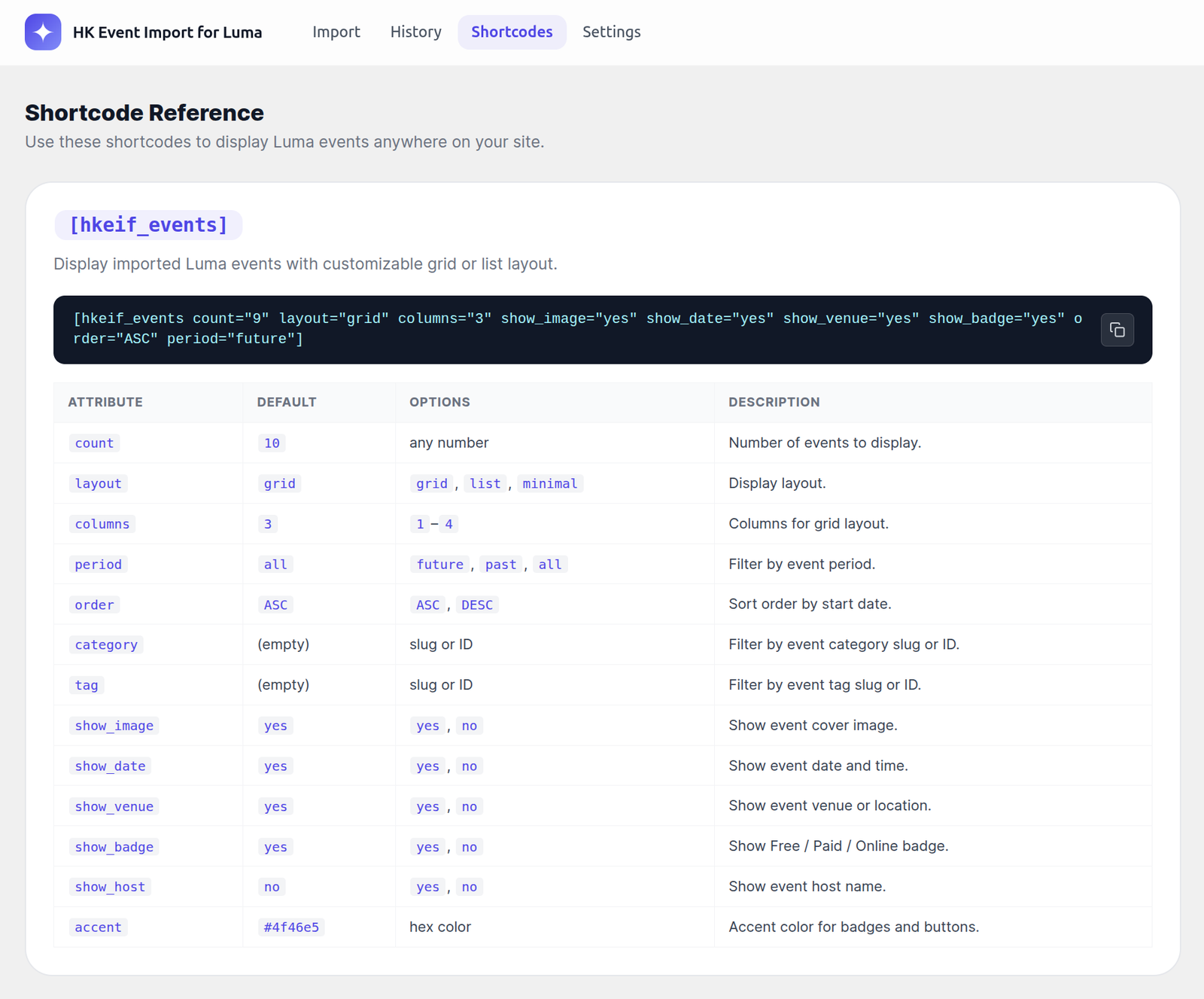
Use the `[hkeif_events]` shortcode in any page, post, or widget.
Grid Layout:

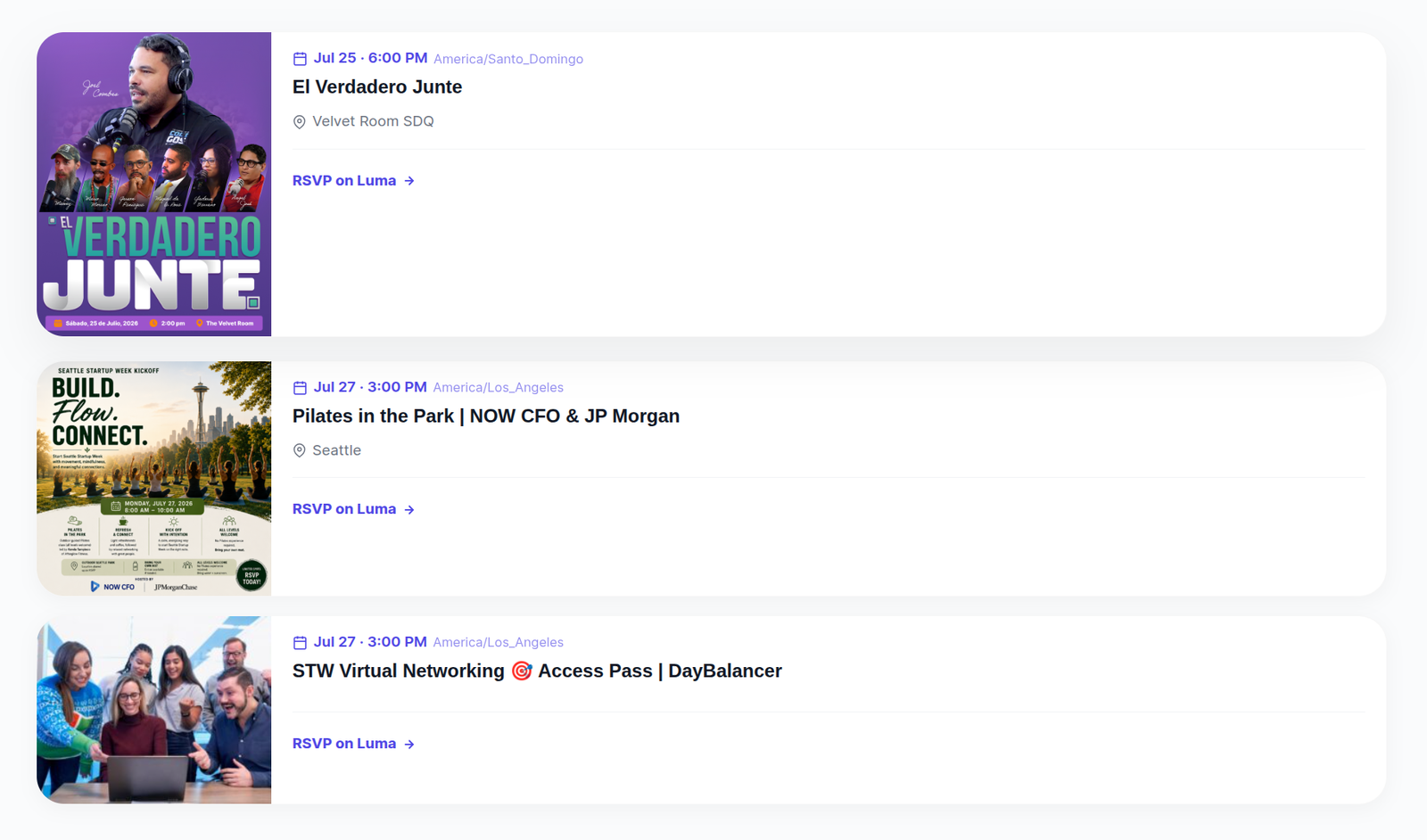
List Layout:
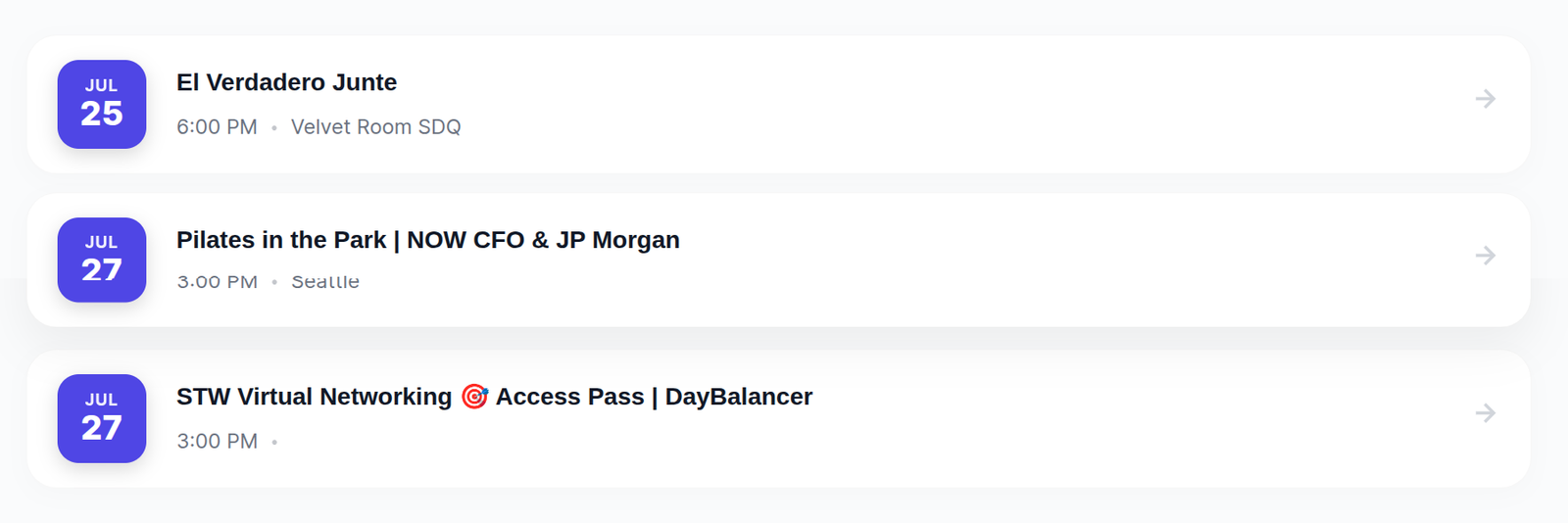
Minimal Layout:
Basic Example:
`[hkeif_events]`
Advanced Example:
`[hkeif_events count=”6″ layout=”grid” columns=”3″ show_image=”yes” period=”future” accent=”#ff0000″]`
Shortcode Parameters:
– `layout`: `grid`, `list`, or `minimal`
– `columns`: Number of columns for the grid (1 to 4)
– `count`: Number of events to display
– `period`: `future`, `past`, or `all`
– `category`, `tag`, `host`, `location`: Filter by taxonomy slug or ID
– `show_image`, `show_date`, `show_venue`, `show_host`: Set to `yes` or `no`
– `accent`: Hex color code for buttons and highlights.
Using the Gutenberg Block
1. Edit any page or post.
2. Click the + button to add a new block.
3. Search for Luma Events (or HK Event Import).
4. Insert the block and use the sidebar inspector to visually adjust the layout, columns, and toggles without writing any shortcode!
Tip: The `minimal` layout is perfect for sidebar widgets or tight spaces.
Upgrade to HK Event Import for Luma Pro
Get access to premium features, faster updates, and dedicated support.
Was this article helpful?
Thanks for letting us know!